


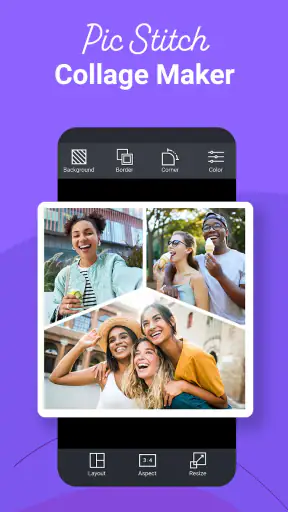

I like collage apps when they remove the small decisions that usually slow down a photo project. Choosing a canvas, arranging several pictures, and making the result look intentional can take longer than expected in a regular editor. Pic Stitch: Collage Maker takes a more direct route: it is a free photography app from Maple Media built around combining multiple photos inside framed layouts. After using it for quick personal projects, I see it as a practical tool for people who want a finished collage without opening a full desktop-style editor.
The most important thing to understand is its focus. This is not trying to replace a complete photo-editing suite, and it is not aimed at photographers who need precise layer work or detailed color correction. Its appeal is the short path from a group of images to something shareable. That narrow purpose also explains both its strengths and its limits: the less you ask it to do beyond arranging pictures, the more comfortable it feels.
How Pic Stitch feels in everyday use
Quick projects benefit most from the simple workflow
My preferred way to use the app is to start with a clear purpose rather than browse through photos without a plan. For example, if I want to put together a small record of a weekend outing, I first select the images that tell the story, then choose a layout that gives the main picture more room. This prevents the common problem of squeezing too many similar shots into one crowded frame.
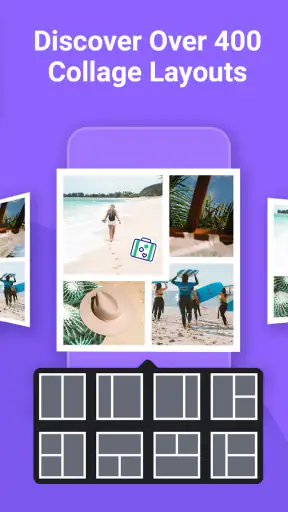
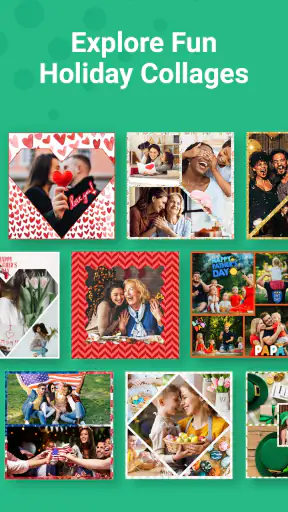
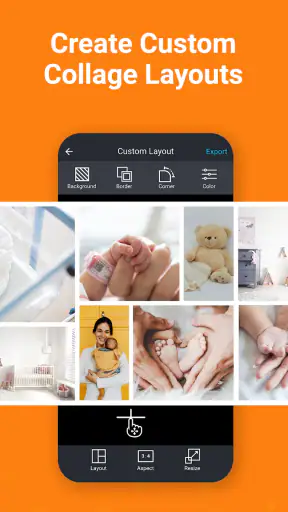
The framed approach is useful because it gives a collage some visual order immediately. Instead of manually placing every image, I can concentrate on the selection and the balance between pictures. That is especially handy for a birthday recap, a before-and-after comparison, a simple product presentation, or a group of food photos that look better together than separately.
I also find that the app suits people who are not naturally comfortable with design tools. A complicated editor can make a basic collage feel like a small graphic-design assignment. Here, the central task is easier to understand: pick images, fit them into a structure, and check whether the composition feels balanced. The real strength is reduced decision fatigue, not advanced editing depth.
Speed expectations are reasonable, but the project matters
For a small collage, the experience feels naturally suited to quick work. A simple arrangement with a handful of photos is a lighter task than a large project containing many high-resolution images. That distinction matters when deciding whether this should be your main photo tool. I would reach for it when I need one finished composition, not when I am trying to manage a large visual archive.
There is also a practical difference between choosing a layout and making it look good. The first step is quick; the second depends on the pictures. If the subjects are positioned differently, faces sit near the edges, or one image is much darker than the others, I need to spend time adjusting the crop and reviewing the result. The app can organize the frame, but it cannot make unrelated images automatically tell the same visual story.
My advice is to prepare the photo group before beginning. Selecting images in advance makes the process feel faster and reduces repeated changes. I also avoid using several nearly identical pictures. A collage with variety usually looks more deliberate than one filled with minor variations of the same shot.
Heavy-use moments reveal the trade-off
The workload becomes more noticeable when I try to build a dense collage or use a set of large images from a modern phone. More pictures mean more cropping decisions, more chances for an awkward focal point, and a greater need to inspect the complete composition before saving or sharing it. Even when the app remains usable, the creative process becomes less instant because the project itself is more demanding.
This is where I would keep expectations realistic. Pic Stitch is convenient for a few related photos, but a complicated visual board can become fiddly. If I need a poster with text hierarchy, several decorative elements, or exact spacing across many assets, I would rather move to a more capable editor. The collage maker is at its best when the frame is the point, not merely the first step toward a larger design.
A useful workflow is to make a rough version first and then remove one image if the result feels busy. That small change often improves readability more than adding another border or decoration. I also check the smallest image in the layout, because it can become visually meaningless even when the overall collage looks attractive at full-screen size.
Stability and recovery deserve practical attention
I judge a photography app partly by how easy it is to recover from an interrupted session. Collage work is not always completed in one sitting: a phone call, a low-battery warning, or a switch to another app can break the flow. With any tool in this category, I prefer saving a workable version as soon as the arrangement is good enough instead of waiting until every detail is perfect.
That habit is particularly sensible for larger projects. A small collage is easy to recreate, but a carefully balanced arrangement can take longer to rebuild. I would also avoid treating the editing screen as permanent storage for important work. Once a result is ready, I keep the finished image in the phone’s normal photo collection or another place I already use for backups.
In day-to-day use, reliability is not only about whether an app opens. It is also about whether the interface remains understandable after I return to it, whether my choices are easy to repeat, and whether an interrupted task can be rebuilt without confusion. Pic Stitch’s focused purpose helps here: there are fewer kinds of edits to remember than in a full creative suite. Still, I would save important results promptly rather than rely on an unfinished session.
What the current version means for compatibility
The current release is version 8.0.0(876), and it requires Android 6.0 or later. That makes the app relevant to a broad range of Android phones and tablets, although compatibility alone does not tell me how comfortable it will feel on every device. Screen size, available storage, camera-image resolution, and the phone’s general age all affect the experience of working with photos.
On a compact display, a collage can be harder to judge accurately. A crop that looks fine while editing may place a face too close to an edge when viewed as a complete image. On a larger screen, the arrangement is easier to inspect, but the app may feel less necessary if I already have a tablet or computer editor that offers more control. The best fit is a reasonably modern phone used for straightforward, finished compositions.
Storage and memory are also worth considering without turning them into a technical checklist. Photo-heavy work naturally uses more working space than a text note, and a phone already crowded with media may make any image workflow less comfortable. I usually close unrelated apps, keep the selected images organized, and avoid starting a large collage when the device is already struggling with general multitasking.
Who will enjoy it, and who should skip it?
I would recommend this app to someone who wants a fast way to present several photos as one image. It is a good match for casual family memories, travel snapshots, simple social posts, small visual comparisons, and anyone who finds traditional editing software intimidating. It can also help a person who regularly sends several related images but wants them to arrive as one tidy composition instead.
I would be more cautious about recommending it to a professional designer, a photographer who needs exact control, or a user creating detailed promotional graphics. Those users may quickly run into the boundaries of a framed collage workflow. A dedicated design app is better when typography, layers, alignment, masking, or brand consistency matter more than speed.
It is also not the ideal choice for someone who wants the app to make every creative decision automatically. The layout can provide structure, but I still need to choose images that work together. If I select pictures with conflicting orientations, unrelated subjects, and very different lighting, the finished result may feel accidental. The app saves time on construction, not on visual judgment.
How it compares with the usual alternatives
The most obvious alternative is the photo editor already installed on a phone. That option may be enough if I only need to crop one image, adjust brightness, or place two pictures side by side. Pic Stitch becomes more appealing when the priority is a ready-made collage structure rather than individual image correction.
Another alternative is a general design app. That route usually offers more freedom, but it also asks for more setup and more decisions. I would choose a general design tool for a poster, invitation, or graphic containing carefully arranged text. I would choose Pic Stitch when the photos should remain the focus and I want the framing process to stay uncomplicated.
There is a third option: sending the images separately. That is fastest when no presentation is needed, but it can be inconvenient for a comparison or a short visual story. Combining the pictures into one frame makes the relationship between them clearer. The compromise is that each individual photo receives less space, so this approach works best when the images remain recognizable at a reduced size.
Costs, audience, and the practical commitment
Pic Stitch is free to install, which makes it easy to try before deciding whether it belongs in a regular workflow. It is rated Teen, so families should still consider that classification in the context of how the app will be used and who will be using the device. The app has been available since October 15, 2014, and its continued presence suggests that the basic collage idea remains useful even though many phones now include more built-in photo tools.
The app includes optional in-app purchases ranging from $0.99 to $99.99 per item. That wide range is a reason to pay attention to the purchase screen before confirming anything, especially if I only need occasional collages. For light use, the free starting point may be sufficient; for frequent use, I would first decide whether the extra cost genuinely improves my workflow rather than paying simply because an option is visible.
Its popularity is substantial, with over five million installs, but popularity does not guarantee that the interface will suit every person. The average rating is 3.4 from around twenty-four thousand ratings, alongside roughly three thousand one hundred reviews. I read those figures as a sign to keep expectations balanced: many people find the basic idea useful, while the overall experience may not satisfy everyone equally.
Three small habits that improve the results
First, I choose the story before the layout. A collage of a meal, a room makeover, or a day outdoors usually benefits from one establishing image and a few supporting details. Starting with the template encourages me to fill empty spaces, which can lead to a weaker result than beginning with the photos that matter.
Second, I crop for the subject rather than for symmetry alone. A perfectly even set of boxes is not helpful if the important person or object is pushed out of view. I check faces, signs, and product details at the final composition size, not just while each image is large on the editing screen.
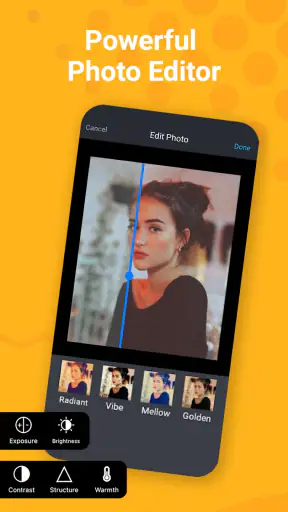
Third, I treat the collage as a single picture when checking color and brightness. If one image is much darker or warmer than the rest, it can dominate the frame. I may return to a regular photo editor first, make the basic corrections there, and then use Pic Stitch for the arrangement. This two-step workflow is often better than expecting the collage tool to handle every part of the image-making process.
My performance verdict
Pic Stitch: Collage Maker is a focused photography app that makes sense when the desired result is a framed collection of photos rather than a fully designed graphic. In my experience, its perceived speed comes from keeping the task narrow: I spend less time building the structure and more time deciding which images deserve a place in it. Small projects feel natural, while dense or highly customized ones expose the limits of the format.
I would install it for occasional family collages, travel recaps, comparisons, and quick visual sharing. I would not make it my only photo editor, and I would save finished work promptly when a project matters. The free entry point is attractive, but the optional purchases and mixed average rating make it sensible to test the basic workflow first.
My final recommendation is conditional but positive: choose it if you value a simple route from several phone photos to one organized image. Skip it in favor of a broader editor if your priorities are advanced retouching, detailed typography, or precise design control. For the right kind of small, photo-centered project, it remains a convenient tool that avoids turning a simple collage into a much larger editing job.


